Free studio
Virtual backgrounds and lower thirds, made in your browser
Design a 1920 x 1080 background for Google Meet, Zoom or Microsoft Teams, or a transparent name tag for your live stream. Your text, colors and logo never leave this device.
Studio
Your own preview in Meet and Zoom may look mirrored. Other people see the text the right way round.
Both files are transparent PNGs. The sample scene is only for preview and is never exported.
Ready-made backgrounds
Six free 1920 x 1080 backgrounds if you'd rather not design one. The blurred rooms look like a real space behind you, minus the laundry.

Warm roomA soft-focus living room with window light, a bookshelf and a plant.Download JPG (46 KB) 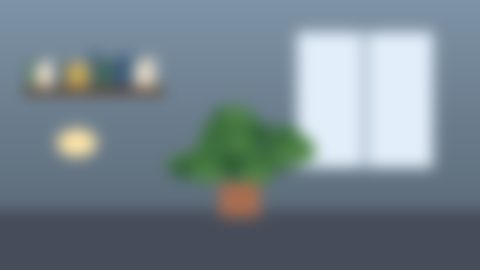
Cool roomThe same out-of-focus room in cooler, daylight tones.Download JPG (45 KB) 
Evening bokehOut-of-focus city lights on a deep navy background.Download JPG (51 KB) 
Blue studioA dark studio look with diagonal light beams.Download JPG (74 KB) 
Sunrise gradientPeach, rose and lilac blended smoothly. Easy on any skin tone.Download JPG (23 KB) 
Sage gradientMuted sage and sand, calm enough for interviews and client calls.Download JPG (25 KB)




Where the file goes
Google Meet
Before you join, click Backgrounds and effects under your preview. In a call, open Video settings next to the microphone. Choose the upload option under personal backgrounds.
Zoom
Open Settings from your profile picture, then Video & effects and Virtual backgrounds. Click the add icon and pick your file. JPG or PNG up to 15 MB.
Microsoft Teams
On the pre-join screen, open Effects and avatars, then More video effects and Add new. In a meeting, use More actions and Video effects and settings.
OBS and streaming studios
Add the full-frame lower third as an image source above your camera. At 1920 x 1080 it lines up with a 1080p canvas without any resizing.
Guides
How to Set a Custom Virtual Background in Google Meet, Zoom and Teams
Where the upload button lives in each app, the image size to use, and why your text might look backwards.
Guide 2 4 minWhat Happened to Google Hangouts?
From a Google+ feature to Meet and Chat: the dates, what replaced each part, and what happened to old messages.
Guide 3 4 minLighting and Framing for Better Video Calls
Light from the front, camera at eye level, a little headroom. The details, plus what's worth buying.
FAQ
- What size should a virtual background be?
- Use 1920 x 1080 pixels, a 16:9 image. It matches most webcams and works in Google Meet, Zoom and Microsoft Teams. Zoom suggests at least 1280 x 720 if you aren't sure what shape your camera is.
- Is anything uploaded when I use the maker?
- No. Your text, colors and any logo you add are drawn on a canvas in your own browser, and the download is saved straight to your device. Nothing is sent to HangoutMagix or anyone else.
- Why does my text look backwards in my own preview?
- Many video apps mirror your self-view so it feels like a mirror. Other people in the call see your background the right way round. If it bothers you, turn off the mirror option in your app's video settings.
- How do I use the transparent lower third?
- Add the PNG as an image source or overlay in a streaming tool such as OBS Studio or a browser-based streaming studio. The full-frame 1920 x 1080 version lines up automatically with a 1080p canvas.
- Is HangoutMagix part of Google?
- No. HangoutMagix is an independent site and is not affiliated with Google, Zoom or Microsoft. The name goes back to an older graphics site for Google Hangouts; that product has since been retired.